Hi there,
I have a design issue which I do not know how to implement and I would like to see if anyone can help me?
A report needs to be created which shows, by item, what the outstanding sales are for an item but in a "matrix format". e.g.
Item A (Grouping)
Size S M L XL
Colour Black 50 100 75 22
Colour White 25 50 65 32
Item B (Grouping)
Size 32 34 36 38 40
Colour Black 50 100 75 11 16
Colour White 25 50 65 21 21
I am using Jet Essentials 2012 and have been told to place Item A as a Value with Rows=X so that the Size and Colours will be correct for the item. As you can see, we have different sizes for ladies and mens items.
So, the issues I have are:
1) For Size, I am using =(NL("Columns"…) so that the Sizes go across the page. For Item A, this works great (I do notice that when running the report, the first size, S, has the formula =NL("Columns"…) but for the other sizes, the are the text value e.g. M. The issue is for Item B, the first Size is correct (32) but the others are using the first item's sizes (M,L,XL). Also, the 5th size, 40, is not calculated. Can youplease tell me whther this is possible or where I am going wrong?
2) For the values, I am using =NL("Sum"…) and have filtered on the Size with a "$", i.e E$8 on the row. This is fine for the first item and picks up the right size for both Colours (S,M,L,XL) but the next item uses E$8 instead of the next Size set (32,34,36,38,40). When I take out the "$", the 2nd colour on Item A has #VALUE errors as it is checking cell E9 instead of E8. Can you please tell me what formula should be used? Is this possible?
Thanks again for any help and it is much appreciated.
Michael
Date
Votes
3 comments
-

Jet Reports Historic Posts Official comment Many thanks to Harry @ support for showing me the light on my 2nd question!
The resolution was to bring the sizes down to the line level, just like the original Item Grouping.
Hope this helps someone.
michaellee -
Jet Reports Historic Posts Hi Michael,
Let me see if I got you right regarding the first question. Is this what you are looking for: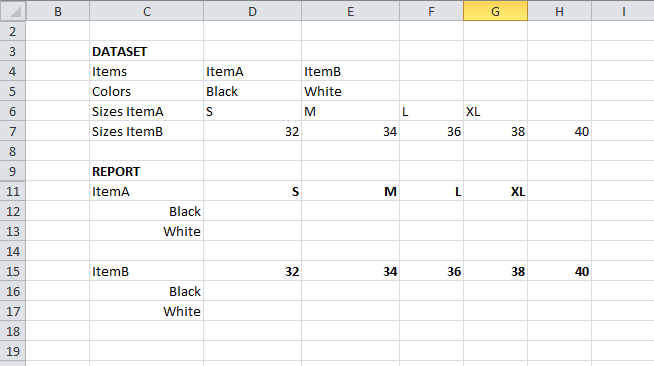
The trick is not to use NL("Columns") on the sizes as they vary per item. You need to number the columns, and use the number reference of NL to pick a specific record from a table.
I entered the numbers manually in the attached example. 5 columns in total as that was the max number of sizes. You could do that with Jet if you wish.
Also, I tricked a bit when retrieving the size as I didn't have any real tables to pull data from. The NL that retrieves the sizes should refer to a real table + field and have filters applied to it. But I hope helping you with the trick to generate columns is good enough. -
Jet Reports Historic Posts Hi Hans,
With regards to my first question, this works perfectly! I didn;t know you could add an integer to the "What" field and use that as the first record or second record etc.
Now, the issue I have is with regards to more Excel vs. Jet but I am unsure if this is possible.
When using the grouping, I have always been told to use $"Column"$"Row" to ensure that the sum I am doing is based on the correct cell. This works fine is I am selecting only one item per report BUT I need to produce this for multiple items and using this, the next item will reference the first item's sizes and produce a #VALUE
If I try $"Column""Row" as the filter, the second colour row on the first item produces incorrect results as the filter is based on "Row"+1
If I try "Column"$"Row" as the filter, the second item will reference the first Item's zise again.
Is there a way in Jet to solve this?
Thanks,
michaellee
Please sign in to leave a comment.