Tips and Tricks:
The files are read in the sequence that they exist in the directory. The names in the player can be anything that you want. The sample reports all start with the module name (i.e. FINANCE, INV, SALES…) so that reports appear in logical groups. You can use the same technique or add 1, 2, 3 to the beginning of the filenames so that the reports show up in the order that works for you.
Seems the above trick not working for the report player?? any one tried it recently, not sure in what order the reports appear in the player .
Please help
Warm regards
Rav-Hong Kong
Date
Votes
2 comments
-

Jet Reports Historic Posts Hello -
In the absence of any other configuration, the order of the reports will match their order in the Report folder.
However, by default, a configuration file (config.xml) is included with the Report Player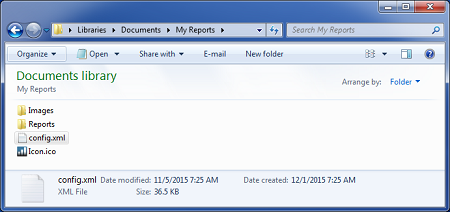
This file contain information about all the reports currently being used in the Player, this includes the order in which the reports appear.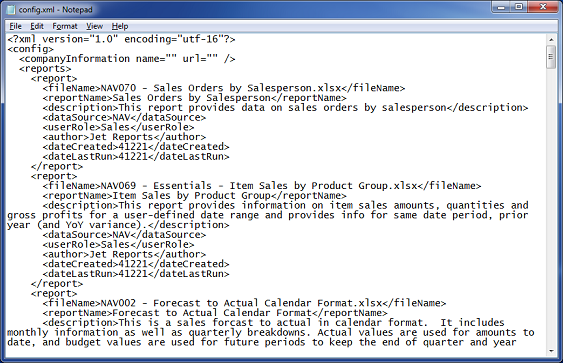
If you want to change the order, you have two options:
1) Modify the config.xml file. I would *STRONGLY* suggest that you create a backup of the original file, first! You would need to move each <report> </report> section in order to achieve this.
for example: As compared to the config file shown above, here I have set the "Item Sales by Product Group" to be the first report displayed in the Player: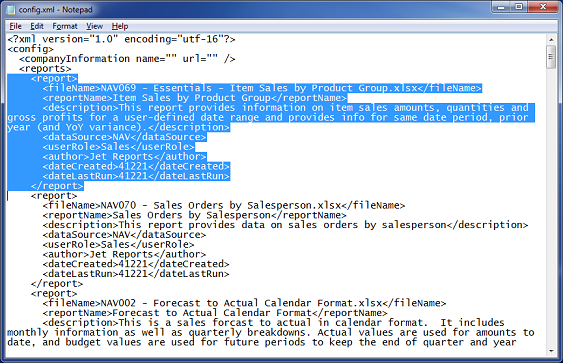
2) Alternately, if you don't care about the additional information Jet Reports has placed in the config file, you could
- close the Report Player
- *MOVE* (not delete) the config.xml to a new sub-folder
- Restart the Report Player
Since there would be no config.xml file, the Report Player will place the displayed reports in the same order as the files appear in Report folder: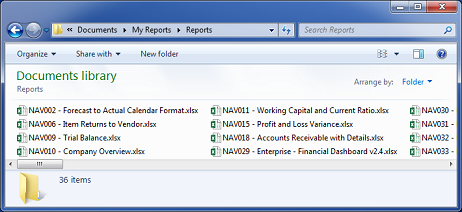
(note: once you close the Report Player, the config.xml file will be created automatically and contain the new ordering):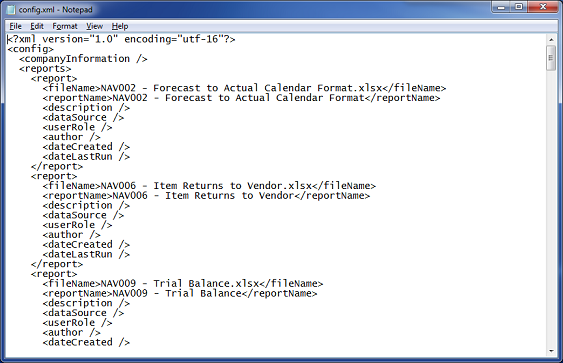
-
Jet Reports Historic Posts Thank you
Please sign in to leave a comment.